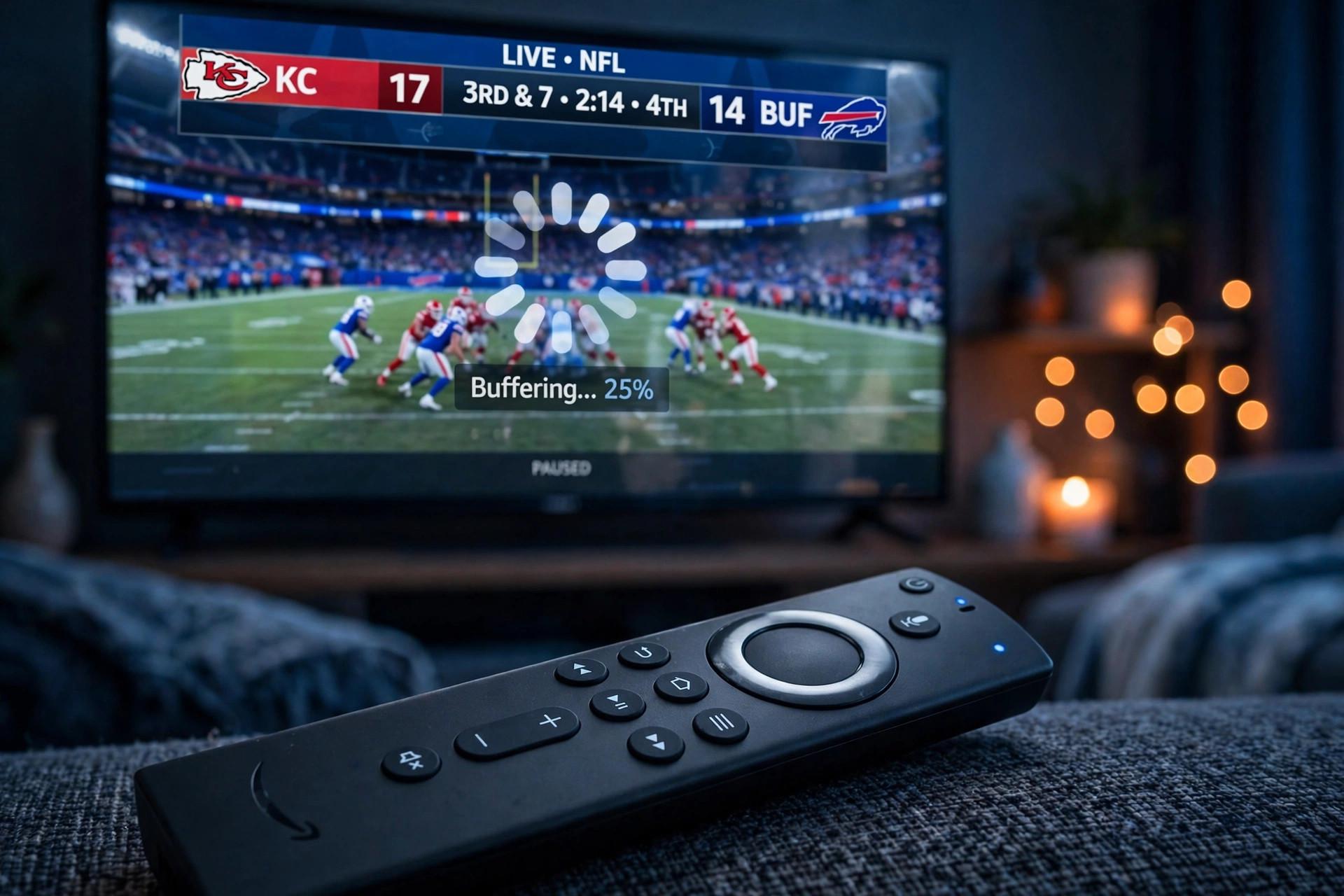
IPTV service with no buffering Firestick: how a VPN changes your stream
A VPN wraps your internet traffic in an encrypted tunnel and sends it through a server run by the VPN company before it reaches the IPTV server. Your internet provider can no longer see that you are streaming video, so it cannot slow down video traffic specifically. The cost is distance and work: the video now travels further, through an extra server, and your device must encrypt and decrypt every piece of it. That extra work adds 10 to 20 percent overhead and a small delay, which matters on a connection that is already close to the limit for 4K.
The result depends on your starting point. On a 100 Mbps connection with a provider that throttles streaming, a VPN can turn a freezing 4K stream into a smooth one, because the throttle was the bottleneck. On a 25 Mbps connection with no throttling, the same VPN can turn a smooth stream into a freezing one, because the overhead pushes the speed below what 4K needs. The only way to know which case you are in is to test both ways, on the same channel, at the same time of day.
When a VPN fixes buffering
A VPN helps when your internet provider slows down streaming traffic at peak hours. The symptom is specific: the picture freezes at 8 PM on every streaming service — IPTV, Netflix, YouTube — while a speed test shows full speed on other kinds of traffic. That pattern means the provider is targeting video, and a VPN hides the video so the throttle cannot find it. The fix is immediate: turn the VPN on, and the freezing stops within a minute, because the traffic is no longer recognizable as video.
A VPN also helps when your internet provider routes your traffic badly. Some providers send traffic to a distant server by default, and a VPN with a nearby server can take a shorter path to the IPTV server. The symptom is a channel that takes thirty seconds to open and freezes often, even though the speed test looks fine. Try a VPN server in your own city and compare the channel opening time — if it drops from thirty seconds to two, the route was the problem. Our buffering guide covers the other causes first.
When a VPN makes buffering worse
A VPN hurts when the connection is already slow. A 4K stream needs 25 Mbps held steady, and a VPN that adds 20 percent overhead turns a 25 Mbps connection into an effective 20 Mbps — below the line, and the picture freezes. The symptom is a stream that played fine before the VPN and freezes after it, on the same channel, at the same time. Turn the VPN off and the freezing stops. That is not a mystery; it is arithmetic, and no VPN setting will change it.
A VPN also hurts when the VPN server itself is overloaded. Free VPNs and cheap VPNs run crowded servers, and a crowded VPN server is a second bottleneck added on top of the first. If the VPN server is in another country, the distance adds delay to every piece of video, which makes the buffer drain faster than it fills. Test with a paid VPN and a server in your own city — if the picture still freezes, the VPN is not the fix, and the problem is elsewhere, usually the IPTV server or your Wi-Fi.
The 10-minute VPN test
Run this test on a Sunday evening, when freezing matters most. Open ESPN and watch for five minutes with the VPN off, and count the freezes. Then turn the VPN on, connect to a server in your own city, and watch the same channel for five minutes, and count again. Then turn the VPN off and watch for five more minutes to confirm the result. Three rounds, fifteen minutes total, and the numbers tell you the truth: fewer freezes with the VPN means it helps, more freezes means it hurts, and the same number means the VPN is not the problem at all.
- Watch ESPN for five minutes with the VPN off and count the freezes.
- Turn the VPN on, connect to a server in your own city, and count again.
- Turn the VPN off and watch five more minutes to confirm the result.
- Test at 8 PM on a Sunday, when throttling and load are both worst.
- Use a paid VPN — free VPN servers are usually too crowded to help.
Write down the numbers for each round, because memory is unreliable after a good evening. If the VPN helps, keep it on for streaming and off for everything else. If it hurts, leave it off and fix the real cause — usually the Wi-Fi, the Firestick cache, or an overloaded IPTV server. Our guide to testing a service shows the full one-evening test plan.
VPNs and IPTV servers: the real bottleneck
Most IPTV freezing has nothing to do with a VPN, because the bottleneck is the IPTV server, not your internet provider. If the game freezes on your TV and on your phone at the same time, every device is hitting the same overloaded server, and a VPN cannot fix a server that is serving too many people. The test is simple: turn the VPN off, watch the game on two devices, and see whether they freeze together. If they do, the server is the problem, and the fix is a provider with anti-freeze servers, not a VPN.
A VPN also cannot fix a Firestick with a full cache, a weak Wi-Fi signal, or a buffer set too small. Those are device problems, and they freeze the picture with or without a VPN. Work through the device checklist first — restart the stick, clear the cache, set the buffer to Large, use Ethernet or the 5 GHz band — and only then test the VPN. A VPN is a tool for one specific problem, throttling, and using it for every problem wastes time that the real fix would have saved.
Which VPN server to pick
If the test shows a VPN helps, pick the server carefully. Choose a server in your own city or the nearest big city, because distance adds delay to every piece of video. Choose a server that is not crowded — most paid VPN apps show the load on each server, and a server under 50 percent load is far better than one at 90 percent. Use the WireGuard protocol if your VPN offers it, because it is faster and uses less overhead than older protocols, which matters on a 25 Mbps connection.
Avoid free VPNs for streaming entirely. A free VPN pays for its servers by crowding them, logging traffic, or selling data, and a crowded free server will freeze a 4K stream that a paid server plays smoothly. A good paid VPN costs $3 to $5 a month, and it is worth it only if the ten-minute test proves it helps your setup. If the test shows no difference, save the money — the VPN was never the problem.
VPN on Firestick and Android TV
Installing a VPN on a Firestick takes five minutes. Open the Amazon Appstore, search for your VPN app, install it, log in, and connect to a server in your city before you open the IPTV player. On Android TV, install the VPN from the Google Play Store the same way. Always connect the VPN before you open TiviMate or IPTV Smarters Pro, because the player caches the connection when it starts, and a VPN turned on halfway through a stream can break the connection instead of fixing it.
Some VPNs offer a kill switch, which blocks all traffic if the VPN drops. Turn it off for IPTV testing, because a kill switch that triggers during a game cuts the stream entirely, which looks like freezing but is actually the VPN protecting you. Test with the kill switch off first, and only turn it on once you know the VPN helps. Our install guide shows the Firestick setup step by step, including the Downloader step for the player app.
The honest answer on VPNs and IPTV
A VPN is a tool, not a magic fix. It helps when your internet provider throttles streaming, and it hurts when your connection is already slow or the VPN server is crowded. It never fixes an overloaded IPTV server, a full Firestick cache, or weak Wi-Fi. Run the ten-minute test, trust the numbers, and use a VPN only when the test proves it helps. A reliable service with anti-freeze servers should not need a VPN at all — the streams are delivered at full speed, and the trial on a Sunday evening is how you prove it.
If you run the test and the VPN helps, keep it simple: one paid VPN, one server in your city, WireGuard protocol, and the VPN connected before you open the player. If the test shows the VPN does not help, leave it off and spend the effort on the real fix — a wired connection, a clean Firestick, and a provider whose servers hold steady on game day. Start the free 24-hour trial and run the test tonight; the numbers will tell you everything you need to know.
Write the test results down, even if the answer seems obvious. A VPN that helps on a Sunday evening might not help on a Tuesday afternoon, because throttling happens at peak time and the VPN only matters when the throttle is active. Test on both a busy night and a quiet night before you decide to pay for a VPN every month. If the VPN only helps on Sundays, turn it on for games and off for movies — the best setup is the one that matches the problem, not the one that runs the most software.
Heat is the Firestick problem nobody checks first. A stick wedged behind a hot TV slows itself down after an hour, and the slowdown looks exactly like a bad server: the picture stutters, the sound drifts, and the guide takes forever to load. The HDMI extender in the box moves the stick away from the heat and often fixes an evening of freezing by itself, before you touch any setting. Pair that with a cleared cache, a buffer set to Large, and the 5 GHz band, and you have removed the three local causes that fool most people into blaming the provider. The Firestick 4K guide covers the display and buffer settings in order, so you can change one thing at a time and know which one worked. Change one setting, watch a full half of a game, and write down the result; guessing with five changes at once teaches you nothing.