IPTV service with no buffering: what it really means
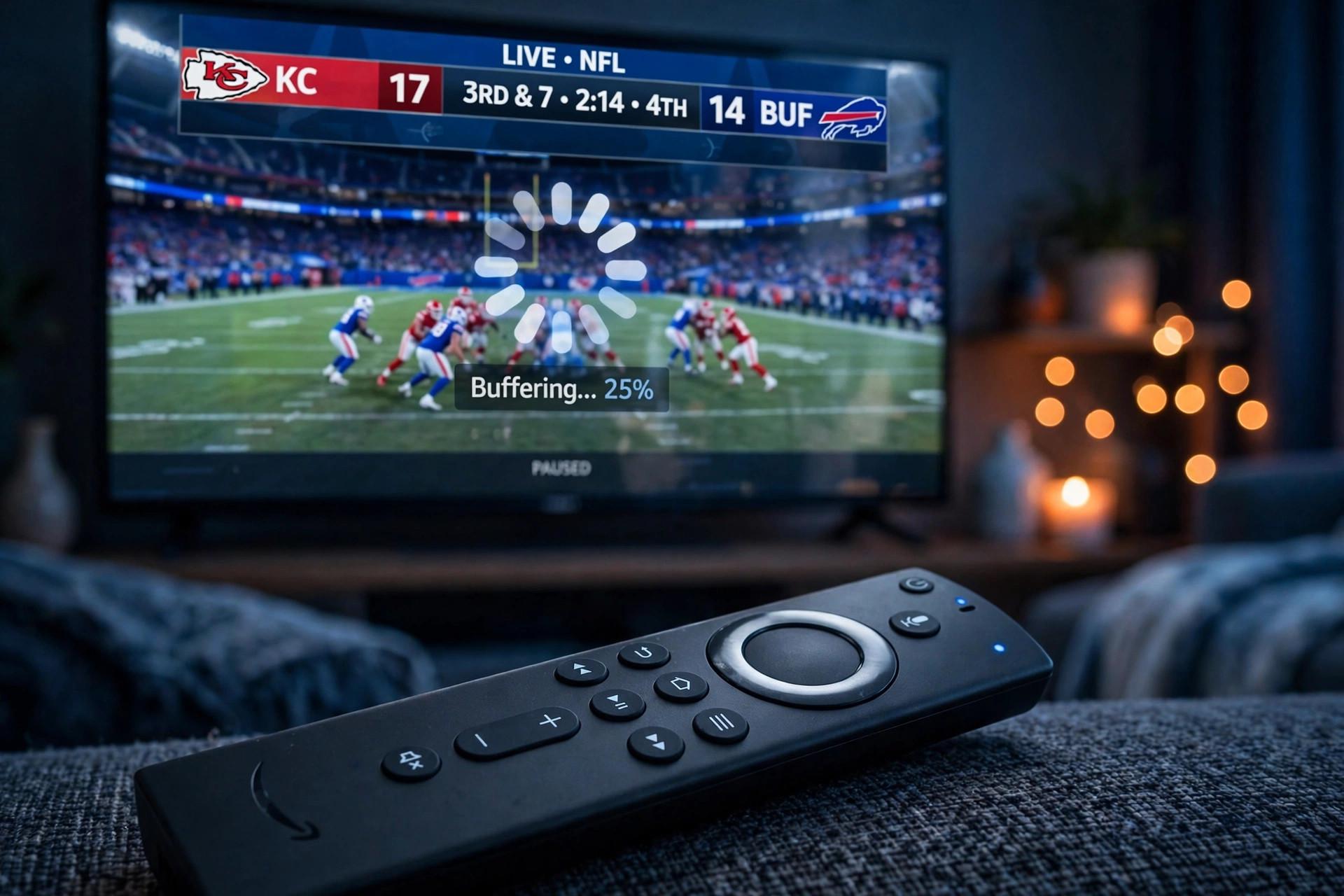
Buffering is the spinning circle that appears when your player runs out of video data to show. The app downloads a few seconds of the channel ahead of time, and when that small reserve empties faster than your connection refills it, the picture stops. A short pause once in a while is normal on any streaming service, including Netflix and YouTube TV. Buffering every two or three minutes is not normal, and it points to a real problem you can usually fix in under ten minutes. The trick is to test in the right order instead of changing everything at once and never learning what worked.
Start by watching the pattern. If only one channel freezes while the rest play fine, the problem sits with that single stream or its source feed. If every channel freezes at the same time each evening, the cause is usually congestion — your home network, your internet provider, or the IPTV server struggling at peak hours. If the picture freezes only on a Firestick but plays fine on your phone, the device is the bottleneck. Write down what you see for one evening: which channels, what time, and which device. That short note turns a vague complaint into a fixable problem, and it is exactly what our support team on WhatsApp asks for first when a customer reports freezing.
Check your internet speed first
A stable IPTV stream needs far less speed than most people think, but it needs that speed constantly. A 1080p channel on ESPN or TNT runs well on 10 to 15 Mbps, while a 4K stream on FOX Sports or a 4K movie needs 25 Mbps or more, held steady for the whole game. Run a speed test on the same device you watch on, at the same time of day you normally watch, and do it three times. A Firestick in the living room can show 90 Mbps on your phone in the same room and still crawl, because the stick sits behind the TV where the signal is weaker and the antenna is small.
If the test shows under 25 Mbps on a 4K setup, move the router closer or switch the device to a wired Ethernet connection. A $15 USB Ethernet adapter for a Firestick 4K Max often ends buffering on the spot, because a cable does not share airtime with every phone, laptop and smart speaker in the house. When a cable is not possible, use the 5 GHz Wi-Fi band for the TV and keep the 2.4 GHz band for phones and smart home gadgets. The 5 GHz band is faster and far less crowded in apartment buildings, even though its range is shorter, so a router in the same room makes a real difference.
Fix the Firestick before blaming the service
The Amazon Firestick is the most common IPTV device in the USA, and it is also the one most likely to cause freezing when it fills up. Open Settings, then Applications, then Manage Installed Applications, and look at the storage number. A Firestick 4K with less than 500 MB free starts to stutter, because the player has nowhere to cache the stream. Clear the cache on IPTV Smarters Pro or TiviMate, delete apps you never open, and restart the stick by unplugging it for thirty seconds. That single restart clears stuck memory and fixes more buffering reports than any other step we see in support.
Next, check the player settings. In TiviMate, open Settings, then Playback, and set the buffer size to Large instead of the default. In IPTV Smarters Pro, open the player settings and turn on hardware decoding if it is off. Lower the stream quality for one evening as a test: if a channel plays smoothly in 1080p but freezes in 4K, your connection or device cannot hold the 4K feed, and the fix is a better connection rather than a different provider. A service that lets you pick quality per channel is doing its job; a device that cannot decode 4K smoothly will freeze on any provider, so test before you switch.
When the server is the problem
Some freezing has nothing to do with your home. On Sunday afternoons during the NFL season, or during a big pay-per-view fight on ESPN+, millions of Americans start streaming at the same minute. A cheap IPTV provider with one overloaded server will freeze for everyone at kickoff, and no router restart will help. That is why a reliable service runs several servers and moves traffic between them when one fills up. The way to tell the difference is simple: test the same channel at 2 PM on a Tuesday and at 8 PM on a Sunday. If it is smooth on Tuesday and frozen on Sunday, the server is buckling under peak load.
This is the exact problem our Premium servers are built to avoid. Premium runs on priority anti-freeze servers with spare capacity held back for peak hours, so a Monday Night Football game on ESPN or a Sunday Night Football broadcast on NBC holds steady while cheaper services fall over. You can prove it before paying anything: start the free 24-hour trial on a Sunday evening, watch the game on ESPN and FOX, and count the freezes. A trial at peak time tells you more about a service than a month of quiet weekday viewing, and it costs nothing.
Wi-Fi settings that stop evening freezing
Evening freezing often comes from your own neighborhood. At 7 PM, every apartment in the building starts streaming Netflix, YouTube and IPTV at once, and the 2.4 GHz band turns into a traffic jam. Log into your router and change the 2.4 GHz channel to 1, 6 or 11 — the only three channels that do not overlap — and pick whichever one your neighbors use least. A free Wi-Fi analyzer app on your phone shows the crowded channels in seconds. On 5 GHz, pick a channel in the 36 to 48 range or the 149 to 165 range and leave the channel width at 80 MHz for the best balance of speed and range.
Keep the router out in the open, at waist height or higher, and away from the TV itself, fish tanks and metal shelves. A router hidden inside a cabinet loses a third of its signal before the stream even starts. If the TV sits two rooms away from the router, a mesh Wi-Fi node in the hallway between them beats a cheap signal extender, because extenders cut your speed in half while they repeat the signal. For a house with a basement TV room, a powerline adapter or a long Ethernet cable run through the wall is the cheapest fix that actually works, and it costs less than one month of cable TV.
The 10-minute buffering checklist
Work through this list in order and stop as soon as the picture holds steady for a full half hour. First, restart the Firestick or Android TV box and the router, then wait two minutes for both to settle. Second, run a speed test on the TV and confirm at least 25 Mbps for 4K or 10 Mbps for 1080p. Third, clear the player cache and set the buffer to Large. Fourth, switch from Wi-Fi to Ethernet if you can, or move the device to the 5 GHz band. Fifth, try the same channel on a different device to see whether the problem follows the device or the channel.
- Restart the streaming device and the router, then wait two minutes before testing again.
- Run a speed test on the TV itself and confirm 25 Mbps for 4K or 10 Mbps for 1080p.
- Clear the player cache, set the buffer to Large, and turn on hardware decoding.
- Switch to Ethernet or the 5 GHz Wi-Fi band and keep the router in the open.
- Test the same channel at a quiet time and at peak time to separate home problems from server problems.
If you reach the end of the list and the picture still freezes on every channel at peak hours, message our support team on WhatsApp with the notes you took — device, channel, time and speed test result. A good support team will check your line on the server side and move you to a less loaded server in minutes, which is exactly what happens on our Premium plans. The trial is the safest way to confirm all of this: try it free for 24 hours on the busiest night of the week and judge the service by the worst evening, not the best one.
Buffering on live sports needs a different test
Live sports punish weak setups harder than movies do, because a football game on CBS or a basketball game on TNT has fast camera movement and constant crowd detail, which needs more data every second than a slow drama. A stream that plays a movie perfectly can still freeze during a fast break or a long touchdown pass. That is why the honest test is always a live game, not a film. Watch the first quarter of an NBA game on ESPN or the first half of an NFL game on FOX, and count every freeze. Zero freezes in a full half means the setup is solid; three or more means something still needs fixing.
For the biggest nights — the Super Bowl on FOX or NBC, the NBA Finals on ABC, a UFC pay-per-view on ESPN+ — start the stream thirty minutes early and let the buffer fill while the pre-game show runs. Open the channel, leave it playing, and do not channel-hop in the last five minutes before kickoff, because every channel change empties the buffer and forces the player to refill it at the exact moment the servers are busiest. Our install guide shows how to set up TiviMate and IPTV Smarters Pro with a large buffer, and the blog has a dedicated guide to watching the NFL without freezing on Sunday afternoons.
The device in your hand changes the fix. A Firestick 4K Max with a full cache freezes on channels that play fine on a wired Apple TV, and the same game can look perfect on a tablet while the living-room TV stutters, because each device handles the buffer differently. That is why a fix that works on one screen can fail on another, and why testing on the device you actually watch on matters more than any generic speed number. On a Firestick, the usual culprits are heat, a crowded 2.4 GHz band, and a player buffer set to Small; our Firestick 4K guide covers the settings that stop the nightly freeze, and the no-buffering Firestick walkthrough works through the same problem step by step. Before you pay for a faster internet plan, run the free 24-hour trial at 8 PM on your main TV: if the picture holds through the first half of a game, the service is sound and the fix was local; if it freezes on every screen at the same minute, the server is the bottleneck and no router upgrade will save it.