How multi-device plans work
A multi-device plan covers several screens at the same time under one subscription. Premium yearly plans cover 2 devices for $159.99, 3 devices for $224.99 and 4 devices for $269.99, and each device gets the full lineup — 57,000+ channels, 185,000 movies and 49,000 series in 4K — with its own login and its own favorites. Basic multi-device plans run $109.99, $159.99 and $199.99 a year for 2, 3 and 4 devices, but Basic is HD only, so a house with a 4K TV should choose Premium.
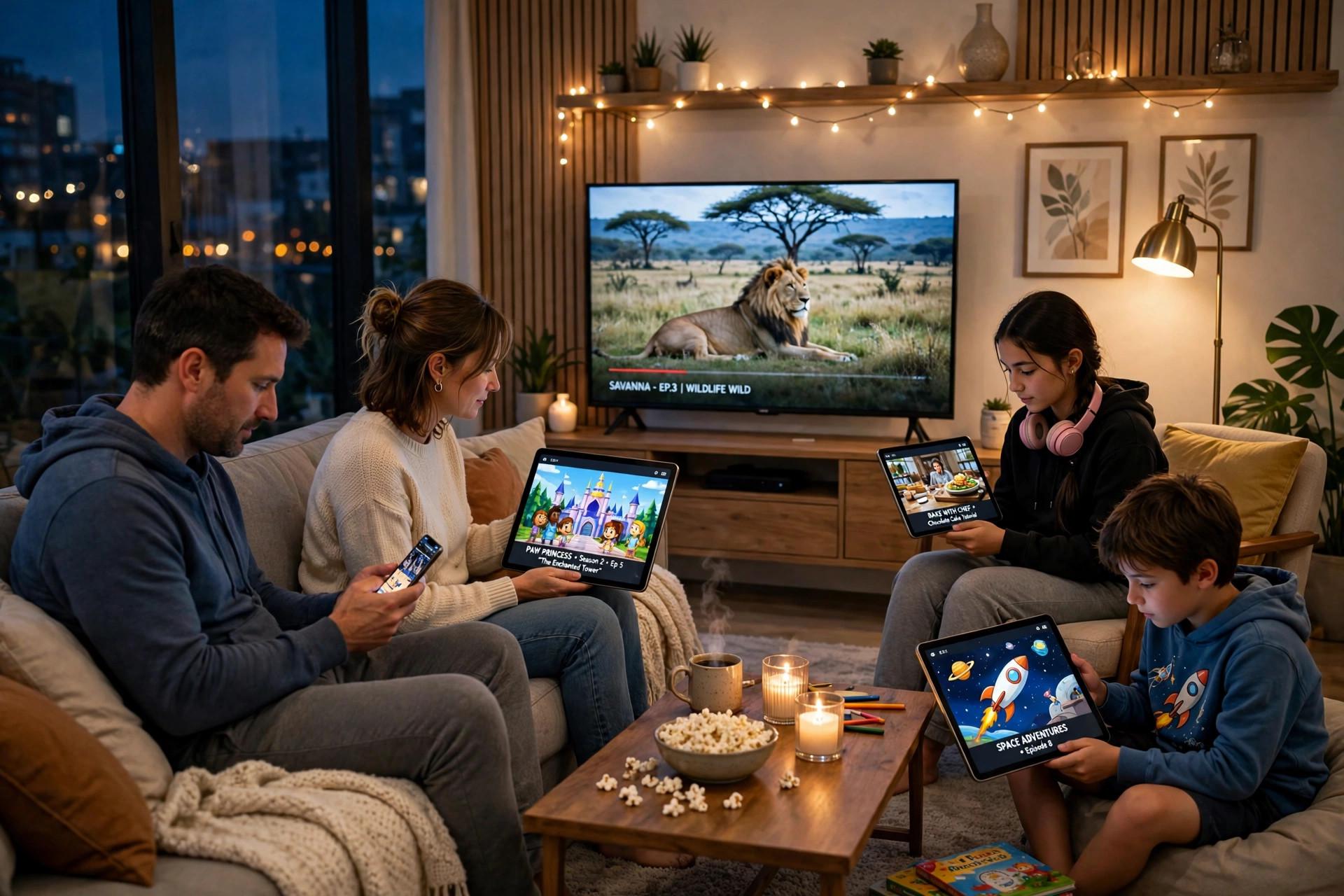
One credit equals one month for one device, and the reseller panel uses the same math, but a household plan is simpler: you buy the plan, you get the logins, and every device signs in with its own details. The devices do not need to be the same — a Firestick in the living room, a Samsung Smart TV in the bedroom, an iPad in the kitchen and an Android phone on the train can all share the plan. Compare the plans side by side and count your screens before you choose.
Count the screens before you buy
Walk through the house and list every screen that will watch IPTV: the living-room TV, the bedroom TV, the kids' tablet, your phone, and the spare TV in the guest room. Most families find four screens, not two, and the plan that covers them all with one spare is the right one — a spare line is useful when a grandparent visits or a child gets a new tablet for a birthday. Buying the 2-device plan for a 4-screen house means two people watch and two argue, which is not a saving.
Think about the future too. A child who watches on a shared tablet today will want their own screen next year, and a plan that covers four devices today covers that growth without a new purchase. The yearly multi-device plans are priced per device, so the 4-device plan at $269.99 costs about $67 per device per year — less than $6 a month per screen for the whole household. Start with the free trial and test every screen you own.
Set up each device the right way
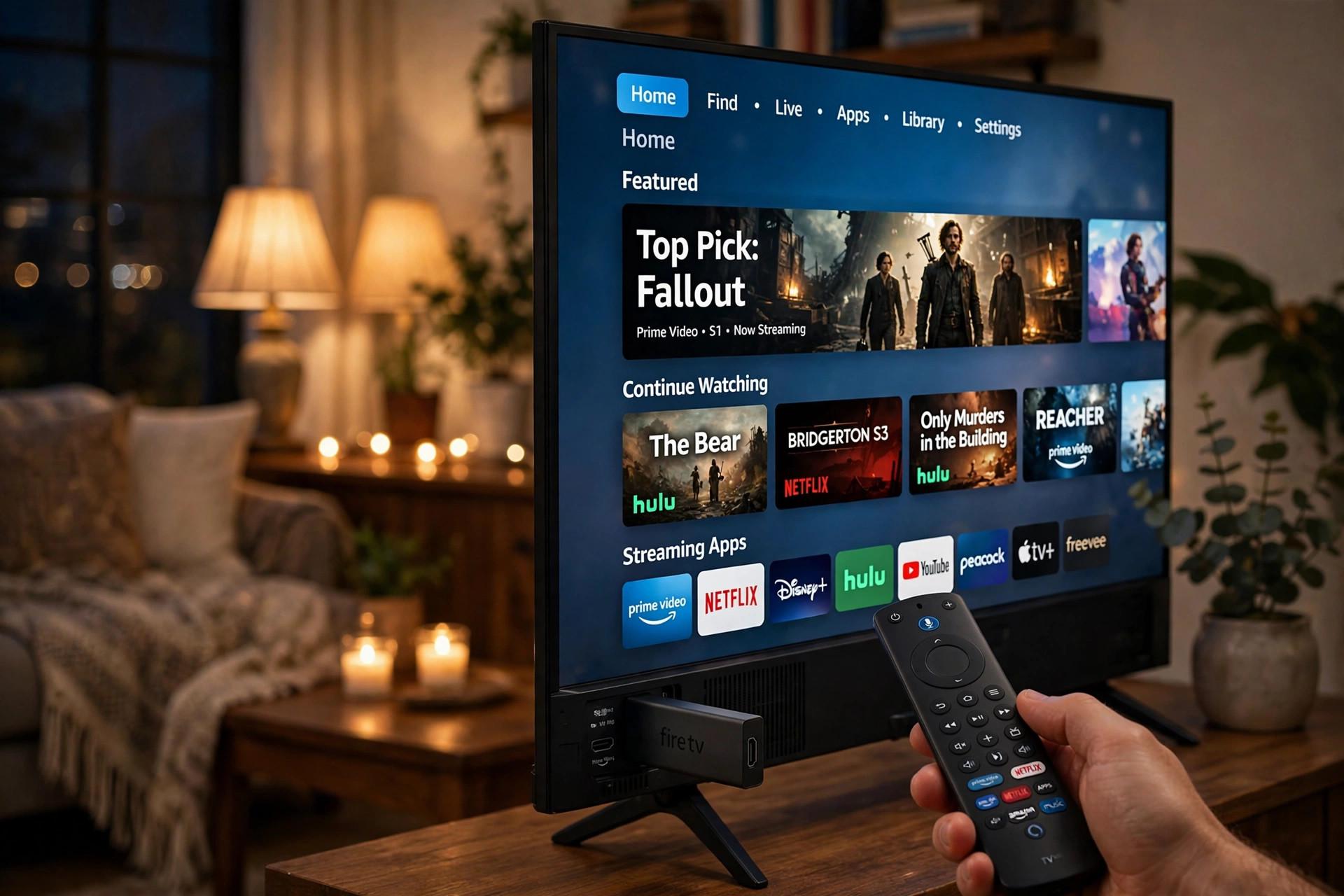
Each device needs its own setup, and the best way is to do them one at a time. Start with the living-room TV, the screen that matters most, and follow the install guide for that device — Firestick, Smart TV, Android TV or Apple TV. Get the first channel playing, set up the favorites, and confirm the picture is sharp. Then move to the next device and repeat. Doing all four at once invites confusion; doing them one at a time takes an hour and leaves every screen working.
Use a different login for each device, even though the plan covers them all. Separate logins mean one device's problem never affects the others, and support can check each line separately when something goes wrong. Label the logins clearly — Living Room, Bedroom, Kitchen Tablet, Phone — so a message to support can say exactly which line is freezing. Free remote installation covers every device: send the team each device's details on WhatsApp and they prepare all the lines together.
The whole-house test at 8 PM
The whole-house test is simple: at 8 PM on a Friday, start a stream on every device at once — the game on the living-room TV, a movie on the bedroom TV, a kids show on the tablet, and the news on the phone — and watch all four for thirty minutes. Count the freezes on each screen. Zero freezes on all four means the service, your internet and your Wi-Fi can carry the household. One screen freezing while the others play fine points to that device; all four freezing together points to the internet or the servers.
- List every screen in the house and pick a plan with one spare device.
- Set up one device at a time, starting with the living-room TV.
- Give each device its own login, labeled by room, for easy support.
- Run the 8 PM test: four streams at once for thirty minutes.
- Check the speed test on the main TV and confirm 25 Mbps per 4K stream.
A 4K stream needs 25 Mbps and a 1080p stream needs 10 to 15 Mbps, so four screens need real bandwidth: two 4K streams plus two 1080p streams need about 80 Mbps held steady. Run a speed test on the main TV at 8 PM and confirm your plan can carry the house. If the test shows less, use Ethernet for the main TV and the 5 GHz band for the rest — Wi-Fi alone struggles when four screens stream at once in the same house.
Wi-Fi for four screens at once
Four screens on Wi-Fi is the hardest test a home network faces, because every device shares the same airwaves. Put the main TV on Ethernet with a USB adapter if it is a Firestick, or a cable if it is a Smart TV — a wired screen never competes for Wi-Fi. Put the second TV on the 5 GHz band, the tablets on 5 GHz too, and keep the phones on 2.4 GHz, so the load spreads across both bands. A mesh Wi-Fi system with a node in the hallway helps more than a cheap extender, because extenders cut speed in half while they repeat the signal.
Restart the router once a week, on a quiet morning, so it starts the weekend with a clean memory. A router that has run for a month without a restart slows down as its memory fills, and four screens will feel it first. If the house has a basement TV room, a powerline adapter or a long Ethernet cable is the cheapest fix that actually works. Our buffering guide covers the network fixes in detail.
Favorites and profiles per device
Each device should feel like it belongs to the person who uses it. Set up a favorites list on each screen: sports on the living-room TV, kids shows on the tablet, news on the bedroom TV, movies on the phone. TiviMate and IPTV Smarters Pro both support favorites and channel groups, and a long press on a channel adds it to the list. Five minutes per device saves five arguments a week, and it means nobody has to scroll past 50,000 channels to find their show.
Parental controls belong on the shared screens. Lock the adult groups behind a PIN on the living-room TV and the kids' tablet, and hide them entirely on the tablet if the child is young. Premium adult content is optional and off by default, but a PIN makes it certain. Our families guide explains the kids setup in detail, including the channels to check during the trial.
What multi-device costs vs separate plans
Four separate one-device yearly plans would cost $399.96 a year at the Premium rate of $99.99 each. The 4-device yearly plan costs $269.99 — a saving of $130 a year for the same channels on the same screens. The 2-device plan at $159.99 saves $40 against two separate plans, and the 3-device plan at $224.99 saves $75 against three. The math is simple, and it is why a household should never buy four single plans when one multi-device plan covers the house.
Start with one month if you are unsure: Premium at $19.99 for a month covers one device, and the multi-device yearly plans are there when the trial proves the service works on every screen. Read the refund policy before you pay — 7 days to change your mind, 30 days on yearly plans — and upgrade to the multi-device plan once the whole-house test passes.
When one device freezes and the rest do not
One freezing device in a house of four is a device problem, not a service problem. Check that device first: restart it, clear the player cache, check its Wi-Fi signal, and move it to Ethernet if you can. Test the same channel on another device — if it plays fine there, the service is healthy and the freezing device needs attention. Message support on WhatsApp with the device name and the room, and a good technician will check that line on the server side while you fix the device.
If all four devices freeze at the same time, the problem is shared: the internet, the router, or the servers. Run a speed test on the main TV immediately, restart the router, and message support with the time and the channel. A team with anti-freeze servers will move your household to a less loaded server in minutes, and the anti-freeze guide explains the server side of the fix.
Guest room, garage and the spare screen
Every house has a screen that is not on the main list: the guest room TV, the garage TV, the tablet that lives in the kitchen. A multi-device plan with one spare line covers those screens without a new purchase, and the spare is most useful when it is already set up. Install the player on the guest room TV during the first week, log in with the spare line, and leave it ready — a guest who can turn on the TV and watch the news without asking for help is a guest who feels at home, and the setup takes ten minutes on a quiet evening.
The spare line also covers the day a device breaks. A Firestick that dies on a Friday night is a crisis without a spare, and a minor inconvenience with one — move the spare login to a backup stick or the phone, and the household keeps watching while the replacement ships. Keep one spare Firestick in a drawer, already logged in, and the whole house has a backup plan that costs nothing to maintain. That is the practical side of a multi-device plan: not just more screens, but a house that keeps working when one screen fails.
Four screens at once is a test of the house, not just the service. The router is the first suspect when every screen freezes together: a box that has run for a month without a restart slows down as its memory fills, and a single restart on a quiet morning often clears a weekend of complaints. Run a speed test on the main TV the moment the freeze happens, before you restart anything, so you know whether the internet dipped or the server did. If only one screen freezes while the others play fine, the problem is that device, and moving it to Ethernet or the 5 GHz band usually ends it. Write the routine down and stick it on the router: restart weekly, test on the main TV first, and message support with the time and the channel when a freeze repeats, so the team can check the log instead of guessing.