Best IPTV service USA: what real 4K looks like
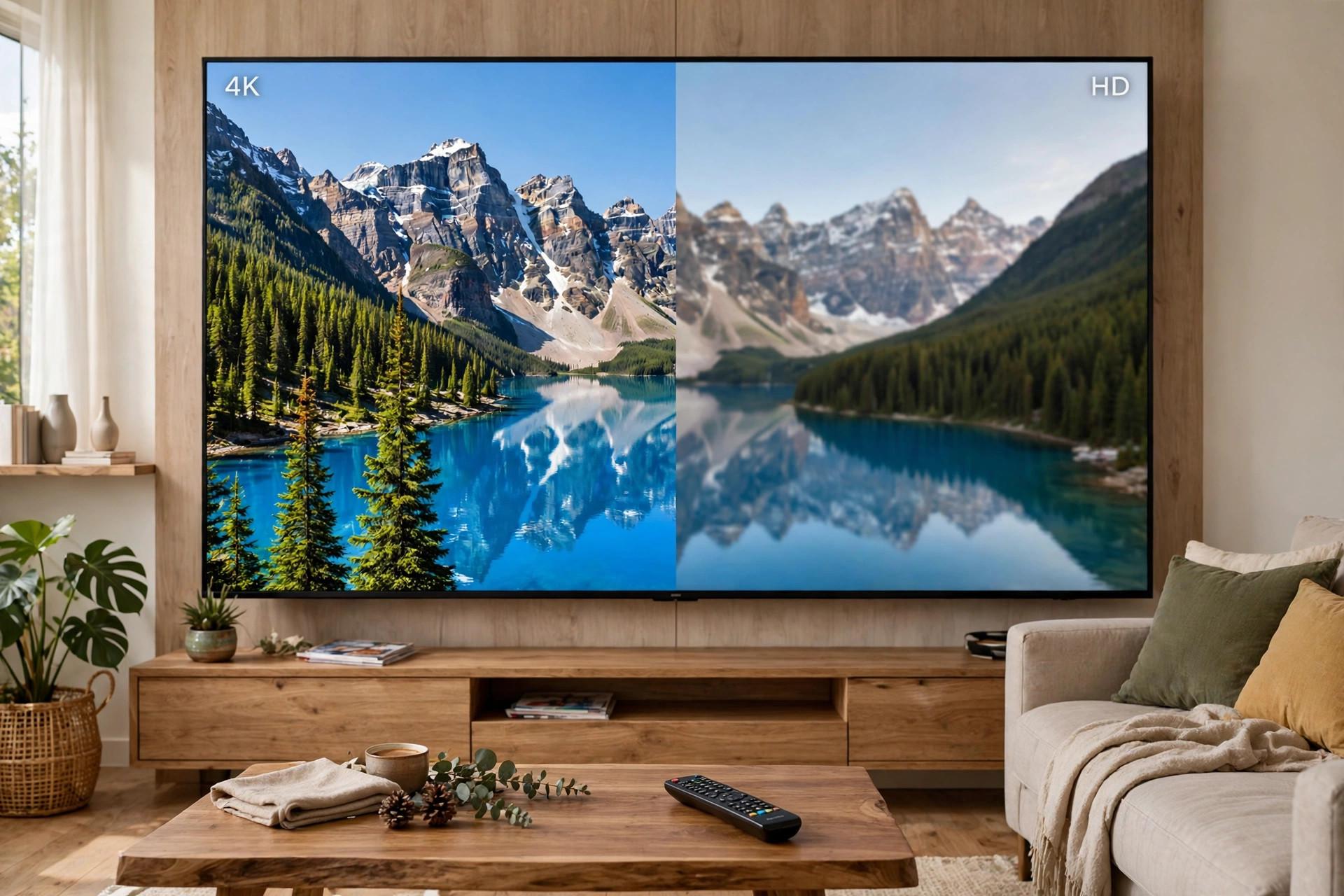
Real 4K means 3840 by 2160 pixels, delivered at a bitrate high enough to keep the detail. On a 65-inch TV watched from eight feet away, a true 4K football game on FOX shows individual blades of grass, the texture of the jerseys, and the numbers on the players' backs without any smearing when the camera pans. A 1080p stream upscaled to 4K looks softer: the grass becomes a green blur, the jersey numbers lose their edges, and fast movement leaves a trail. The difference is obvious once you know what to look for, and it is the first thing to check on any new service.
Bitrate matters as much as resolution. A 4K stream at 8 Mbps will look worse than a 1080p stream at 12 Mbps, because the lower bitrate forces the encoder to throw away detail. A good 4K IPTV stream runs at 15 to 25 Mbps, which is why a 25 Mbps internet connection is the minimum for smooth 4K. If your provider labels a channel 4K but the picture looks soft during fast action on ESPN, the bitrate is too low, and no TV setting will sharpen it. The plans page shows which of our plans carry 4K and 8K streams.
Test with a live sports game
A live game is the hardest test for any stream, because the camera moves constantly and the picture is full of detail. Open an NFL game on CBS or FOX and watch the wide shot after a kickoff: a good stream keeps the yard lines sharp while the players run, while a weak stream turns the field into blocks of color. Then watch an NBA game on TNT or ESPN and follow a fast break — the ball should stay round and the court lines should stay straight. If the ball smears or the lines wobble, the bitrate is too low for the motion.
Pause the game if your player supports it, and look at a still frame of the crowd. In a real 4K stream you can pick out individual faces in the stands; in an upscaled 1080p stream the crowd is a soft mass. Try the same test on a movie on HBO: a close-up should show skin texture and fabric detail, not a smooth plastic look. Run this test during the free trial, at peak time, because a stream that looks sharp at noon can soften at 8 PM when the servers are busy.
Check the resolution on your device
Your TV and player can tell you what resolution is actually arriving. On a Firestick, open the developer options or the player stats in TiviMate to see the stream resolution and frame rate. In IPTV Smarters Pro, the player information screen shows the video codec, resolution and bitrate while the channel plays. If the screen says 1920 by 1080 while the channel is labeled 4K, the provider is sending 1080p. If it says 3840 by 2160, the 4K label is honest.
Check the frame rate too. US sports broadcast at 60 frames per second, and a stream delivered at 30 frames per second will look jerky on fast movement, even if the resolution is 4K. A smooth NFL game needs 60 fps, and so does an NBA game or a NASCAR race on FOX. If the motion looks like a slideshow during a fast break, open the player stats and check the frame rate before blaming your TV. Our install guide explains how to open player stats in TiviMate and IPTV Smarters Pro.
Audio is part of quality
Stream quality is about more than the picture. A good IPTV service delivers clear stereo or surround sound that stays in sync with the lips on screen. Watch a news anchor on CNN or a talk show on NBC and look at the lips: if the sound lags behind the mouth by even a fraction of a second, the stream has an audio sync problem, or your device is struggling to decode the audio. Most players let you adjust the audio delay in small steps, and a delay of 100 to 200 milliseconds usually fixes a small mismatch.
Test the sound on a movie with quiet dialogue and loud action, like a thriller on AMC. If the dialogue is clear but the explosions distort, the audio bitrate is too low or your TV is set to the wrong sound mode. Switch the TV to Movie or Cinema mode for the test, and turn off any fake surround processing that can distort the sound. A service that delivers clean audio at a proper bitrate sounds noticeably better on the same TV, and the difference is easy to hear during a trial.
Compare providers the honest way
The only fair comparison is the same TV, the same internet, the same time of day, and the same channel. Open the NFL on FOX on your current service and on a trial of ours, one after the other, and look at the same play. Compare the grass, the jersey numbers, and the smoothness of the camera pan. Then do the same on a 4K movie on HBO and a basketball game on ESPN. Three channels, ten minutes each, tells you more than a week of casual watching, because your eyes compare the two pictures while the memory is fresh.
- Test a live NFL game on FOX or CBS and look at the grass and jersey numbers during a fast play.
- Open the player stats and confirm 3840 by 2160 resolution and 60 frames per second.
- Watch an NBA fast break on TNT and check whether the ball stays round and sharp.
- Pause a movie on HBO and look for skin texture and fabric detail in a close-up.
- Check audio sync on a CNN news anchor and listen for clear dialogue in a quiet scene.
Write down what you see for each service, in one line per channel. The winner is usually clear within the first evening. A provider that charges $19.99 and delivers real 4K at 60 fps is a better deal than a cheaper service that delivers soft 1080p labeled as 4K. Start the free 24-hour trial and run this exact test on the channels you watch most — the picture will speak for itself.
When your TV is the bottleneck
Sometimes the stream is fine and the TV is the problem. A TV that does not support 4K will downscale every 4K stream to 1080p, and no provider can fix that. Check the TV model and confirm it is a real 4K panel, not a 1080p panel with a 4K label on the box. Also check the HDMI port: older HDMI 1.4 ports cannot carry 4K at 60 frames per second, so a Firestick plugged into an old port will be limited to 4K at 30 fps or 1080p at 60 fps. Use an HDMI 2.0 port or better for the streaming stick.
Turn off the TV motion smoothing for the test, because that feature invents frames and can make a good stream look artificial and a bad stream look worse. Set the picture mode to Movie or Cinema, which shows the stream as it actually is, and turn off noise reduction, which softens detail. With those settings, what you see is what the provider sends — and that is exactly what a quality test should measure.
8K: what it means for US viewers
Some Premium plans now list 8K streams, and it is worth knowing what that means in practice. An 8K stream carries 7680 by 4320 pixels, four times the detail of 4K, but almost no US household owns an 8K TV yet, and an 8K stream needs 50 Mbps or more to hold steady. On a 4K TV, an 8K stream is downscaled to 4K, which can look slightly sharper than a native 4K stream because the extra detail survives the downscale. Treat 8K as a bonus for the future, not a reason to choose a service — the 4K quality on the channels you watch every day matters far more.
If your internet plan tops out at 100 Mbps and three people stream at once, 8K is out of reach and 4K is the right target. A single 4K stream at 25 Mbps leaves room for the rest of the house, while an 8K stream would eat half the connection. Pick the plan that matches your TV and your internet, not the biggest number on the page. Premium here includes 4K and 8K where the channel broadcasts in that quality, and the blog explains how to test your internet speed for 4K streaming.
How to read player stats like a technician
The player statistics screen is the most honest tool you own, and it takes ten seconds to open. In TiviMate, press and hold the OK button on a channel and open the stream information to see the resolution, the frame rate, the video codec and the audio format. In IPTV Smarters Pro, tap the player screen and open the info panel. Look for four numbers: resolution, frame rate, bitrate and dropped frames. Resolution tells you the size of the picture, frame rate tells you how smooth the motion is, bitrate tells you how much detail the encoder kept, and dropped frames tell you whether your device is keeping up.
Dropped frames are the number most people ignore, and it matters most. A stream at 4K and 60 fps that drops one frame in ten will look worse than a clean 1080p stream, because every dropped frame is a small stutter your eye catches during fast movement. If the dropped-frame counter climbs during a game on ESPN, your device is struggling to decode the stream — switch the player to hardware decoding, lower the quality to 1080p for one evening, and see whether the counter stops climbing. If it does, the device was the limit, not the service, and a newer Firestick 4K Max or an Ethernet cable is the fix that actually works.
The mistake most buyers make is shopping by channel count alone. Two services can both list 50,000 channels and feel nothing alike at 8 PM, because one spreads its viewers across servers that hold up under load and the other does not. The numbers that matter are the ones you can test: how fast a channel opens, how often it freezes during a game, whether the guide matches the real schedule, and how fast support answers at 10 PM. Our how to choose guide turns those tests into a checklist you can run in one evening. Picture quality deserves its own check, and the 4K quality guide shows how to tell real 4K from upscaled 1080p using the player stats on your own TV. Run every check inside the free 24-hour trial at peak hours, and let the evening decide instead of the sales page.