Best IPTV service USA 4K quality: HD, 4K and 8K in plain numbers
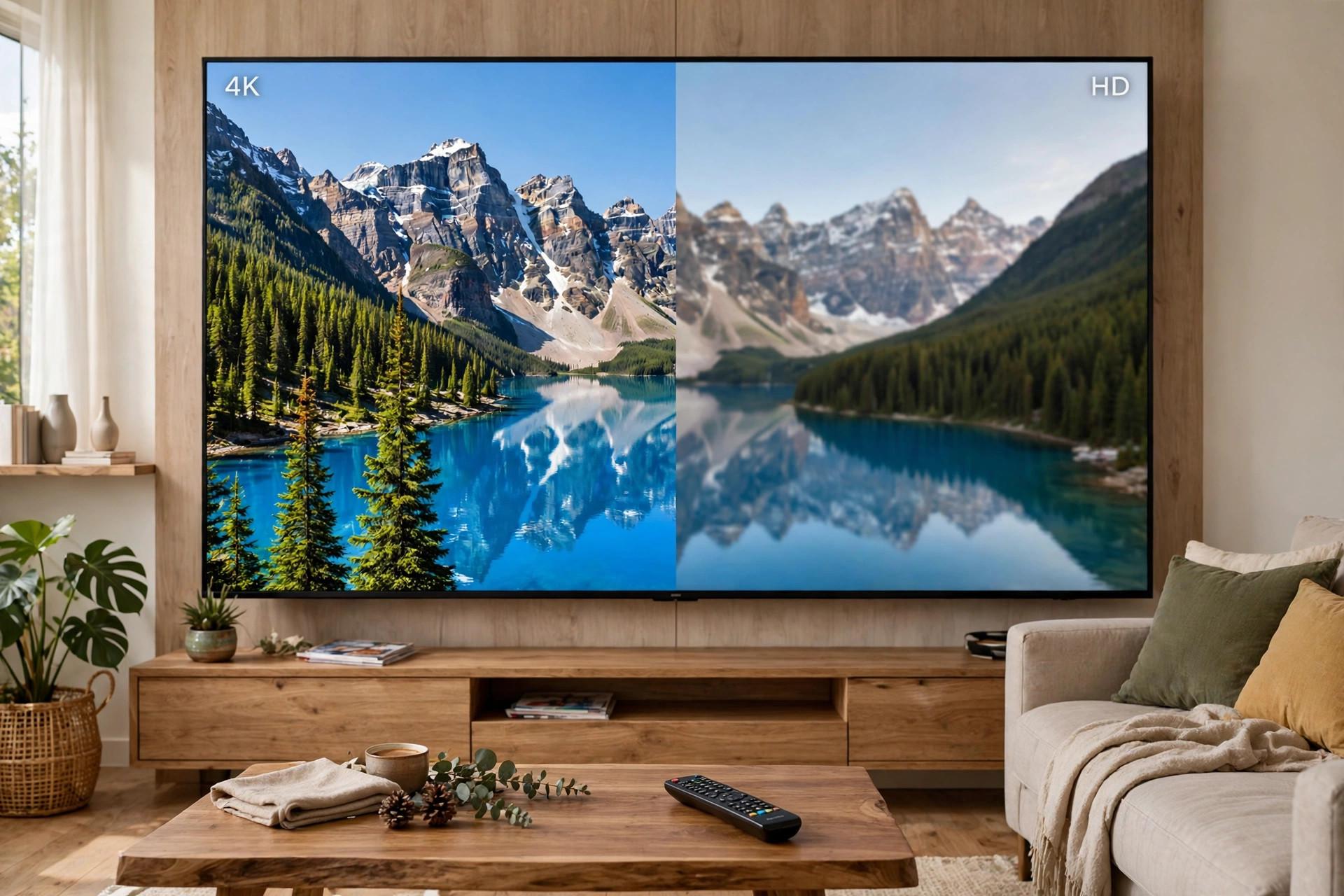
HD, or 1080p, means 1920 by 1080 pixels — about two million dots making up the picture. It is the quality most US cable channels still broadcast in, and on a 55-inch TV watched from ten feet away, it looks clean and sharp. 4K means 3840 by 2160 pixels, four times the detail of HD, and on a 65-inch TV you can see the difference from eight feet away: individual blades of grass on a football field, the texture of a jersey, the numbers on a player's back. 8K means 7680 by 4320 pixels, four times the detail of 4K again, but almost no US household owns an 8K TV yet, and an 8K stream needs 50 Mbps or more.
The numbers only tell half the story, because bitrate decides how much of that detail survives. A 4K stream at 8 Mbps will look worse than a 1080p stream at 12 Mbps, because the lower bitrate forces the encoder to throw away detail. A good 4K IPTV stream runs at 15 to 25 Mbps, which is why a 25 Mbps internet connection is the minimum for smooth 4K. When you compare services, compare the picture with your eyes, not the label on the sales page — the label is free, and the picture is the truth.
Test quality with a live game
A live game is the hardest test for picture quality, because the camera moves constantly and the picture is full of detail. Open an NFL game on CBS or FOX and watch the wide shot after a kickoff: a good stream keeps the yard lines sharp while the players run, while a weak stream turns the field into blocks of color. Then watch an NBA game on TNT and follow a fast break — the ball should stay round and the court lines should stay straight. If the ball smears or the lines wobble, the bitrate is too low for the motion, whatever the label says.
Try the same test on a movie. Open a film on HBO, pause on a close-up, and look at the skin texture and the fabric of a jacket. In a real 4K stream you can see pores and weave; in an upscaled 1080p stream the face looks smooth and plastic. Run this test during the free trial, at peak time, because a stream that looks sharp at noon can soften at 8 PM when the servers are busy. Start the free 24-hour trial and run the test on the channels you watch most.
Your TV settings change everything
Most TVs ship with picture settings that make a good stream look bad. The Vivid or Dynamic mode oversaturates the colors and crushes the shadows, so a football field looks neon green and the dark parts of a movie turn black. Switch the picture mode to Movie or Cinema, which shows the stream as it actually is, and turn off motion smoothing — the feature that invents frames and makes movies look like soap operas. Turn off noise reduction too, because it softens detail that the stream worked hard to deliver.
Check the sharpness setting as well. A sharpness of 50 or higher adds fake edges that make the picture look harsh, while a sharpness near zero lets the real detail show. Set it between 0 and 10 and compare the same play before and after — the difference is usually obvious. And confirm the TV is actually receiving 4K: open the TV info panel while the game plays and check the resolution. If it says 1080p while the channel claims 4K, the stream is not 4K, and no TV setting will fix that.
HDMI, cables and the 60 fps rule
The cable between your Firestick and your TV matters more than people think. An old HDMI 1.4 cable cannot carry 4K at 60 frames per second, so a Firestick plugged into an old port will be limited to 4K at 30 fps or 1080p at 60 fps. Use the HDMI cable that came with the device, or a certified high-speed cable, and plug the stick into an HDMI 2.0 port or better. US sports broadcast at 60 frames per second, and a 30 fps stream looks jerky on fast movement even if the resolution is 4K.
Check the frame rate in the player stats. In TiviMate or IPTV Smarters Pro, open the stream information while a game plays and confirm 60 fps. If it says 30 fps, the stream is the problem, not your TV — a provider that delivers sports at 30 fps is cutting corners on the encoding. Our stream quality test explains how to read the player stats, including resolution, bitrate and dropped frames.
When the internet limits the picture
Picture quality follows your internet speed, and the math is simple. A 1080p stream needs 10 to 15 Mbps held steady, a 4K stream needs 25 Mbps, and an 8K stream needs 50 Mbps. If three people stream at once in your house, add the numbers together: two 4K streams and a phone call need 60 Mbps of real, steady speed, not the headline speed on your internet bill. Run a speed test on the TV at 8 PM, when the neighborhood is busiest, and compare the result with what your plan promises — if the test shows half the promised speed at peak time, the picture will suffer every evening.
- Watch an NFL game on FOX and look at the grass and jersey numbers during a fast play.
- Set the TV to Movie mode, turn off motion smoothing, and set sharpness near zero.
- Open the player stats and confirm 4K resolution and 60 frames per second.
- Run a speed test on the TV at 8 PM and confirm 25 Mbps for 4K.
- Compare the trial with your current service on the same TV and channel.
A wired Ethernet connection is the most reliable way to hold the speed your picture needs. Wi-Fi speed varies with distance, walls and neighbors, while a cable delivers the same speed all evening. A $15 USB Ethernet adapter for a Firestick 4K Max is the cheapest picture upgrade there is, and it often sharpens a soft picture that looked like a service problem. Our install guide shows the setup for every device.
Premium vs Basic picture quality
The difference between Basic and Premium is visible on the screen. Basic delivers 10,000+ channels and 80,000 movies and series in HD and Full HD, which looks great on a 1080p TV in a bedroom. Premium delivers 57,000+ channels, 185,000 movies and 49,000 series in HD, Full HD, 4K and 8K, with all sports and pay-per-view included. On a 65-inch 4K TV in the living room, Premium is the plan that shows what the TV can do; Basic will look soft by comparison, because the TV is upscaling a 1080p stream to fill a 4K screen.
The price difference is small: Basic starts at $14.99 a month and Premium at $19.99, with yearly plans at $59.99 and $99.99. For $5 a month, Premium adds 4K and 8K, five times the channels, and the priority anti-freeze servers that keep the picture steady on game day. Compare the plans side by side and run the picture test on both during the trial — the difference is visible within the first minute of a live game.
Common picture problems and fixes
A soft picture on every channel usually means a low bitrate or a slow connection — run the speed test and check the player stats first. A picture that is sharp on movies but soft on sports means the bitrate is too low for fast motion, and the fix is a provider with a higher bitrate, not a TV setting. A picture that stutters during fast movement usually means dropped frames, and the fix is hardware decoding or a newer Firestick 4K Max. A picture that looks washed out usually means the TV is in Vivid mode or the HDMI range is set wrong — switch to Movie mode and check the HDMI black level setting.
Color problems have their own fixes. If skin looks orange, the TV color temperature is set too warm — switch it to Neutral or Warm 1 instead of Warm 2. If the picture looks green, a cable may be loose, or the TV is in a store display mode that oversaturates everything. Reset the picture settings to factory defaults, then set Movie mode and adjust from there. When the picture is still wrong after all of that, message support on WhatsApp with a photo of the screen — a good technician will recognize the problem from the photo in seconds.
Choosing the right plan for your TV
Match the plan to the TV, not the other way around. A 1080p TV in a bedroom is happy with Basic at $14.99 a month, because the TV cannot show 4K anyway. A 65-inch 4K TV in the living room deserves Premium at $19.99, because the TV can show every pixel the service sends. A house with two 4K TVs and a Firestick in each room should look at the multi-device yearly plans — $159.99 for two devices, $224.99 for three, $269.99 for four — which cover the whole household for the year at a lower price per device.
Start with the trial and test both tiers if you can. Watch the same game in 1080p on Basic and in 4K on Premium, on the same TV, one after the other. The difference will tell you which plan fits your home, and the refund policy gives you 7 days to change your mind, 30 days on yearly plans, if you pick wrong.
Real 4K is easy to claim and easy to check, once you know where to look. Open the stream information in TiviMate or IPTV Smarters Pro while a game plays: 3840 by 2160 at 60 frames per second is real 4K, while 1920 by 1080 upscaled by your TV is not, no matter what the channel name says. Pause on a close-up and look at the jersey texture, the numbers on the back, and the faces in the crowd; in a real 4K stream you can read the name clearly, while in upscaled 1080p the crowd turns into a soft mass. The Firestick 4K guide covers the display settings that stop the stick from capping the stream at 1080p, because the wrong HDMI port or a forced resolution will hide 4K even when the service sends it. If the stats say 4K but the picture still freezes, the no-buffering guide works through the causes in order, and remember that 4K needs a steady 25 Mbps held for the whole game, not a speed test that spikes and falls.